 PhotoRiya
How to open a PSD file in your browser and edit it for free
Someone sent you a .psd and you don't have Photoshop. You can still open it, change the text, swap an image, tweak the colours and save it back as a PSD, all in a browser tab, without paying or installing anything.
PSD is Photoshop's own file format. It keeps every layer, mask, text box and effect separate so the design stays editable. Most free image viewers flatten all of that into a single picture, which is fine for a quick look but useless if you need to change something.
PhotoRiya is a free image editor that opens PSD files with their layers intact and works the way Photoshop does: the same menus, the same tools and the same keyboard shortcuts. It runs in your browser, and your files never leave your computer.
Open and edit a PSD in four steps
-
Open PhotoRiya
Go to photoriya.com/app in Chrome, Edge, Safari or Firefox. There's no sign-up and nothing to install. The first visit downloads the editor once, and after that it starts from your browser's cache.
-
Drop in your .psd file
Drag the file from your desktop or Downloads folder onto the PhotoRiya window. You can also use (Ctrl+O, or ⌘+O on a Mac). PSB files, Photoshop's format for very large documents, open the same way.
The file is read by your browser on your own machine. Nothing is uploaded.
-
Edit it like you would in Photoshop
Your layers show up in the Layers panel with their groups, masks, blend modes and opacity. Click a layer to select it, use the eye icon to hide it, and double-click a text layer to edit the words. The next section covers the tools you'll reach for most.
-
Save it back as a PSD, or export an image
Choose (Ctrl+Shift+S) and keep the .psd format. Your browser downloads the file, with every layer still editable, so you can send it back to whoever made it. If you just need a picture, saves a JPG, PNG or WebP with a preview and a file-size estimate.
What survives when you open a PSD
PhotoRiya was built from Adobe's published PSD specification and is tested against hundreds of real Photoshop files. When you open a PSD, these stay editable:
| In your PSD | In PhotoRiya |
|---|---|
| Layers and groups | Same order, names, opacity, fill and 27 blend modes |
| Layer masks and vector masks | Kept, and you can paint or edit them |
| Adjustment layers | Curves, Levels, Hue/Saturation, Vibrance, Black & White, Gradient Map and more, all still live |
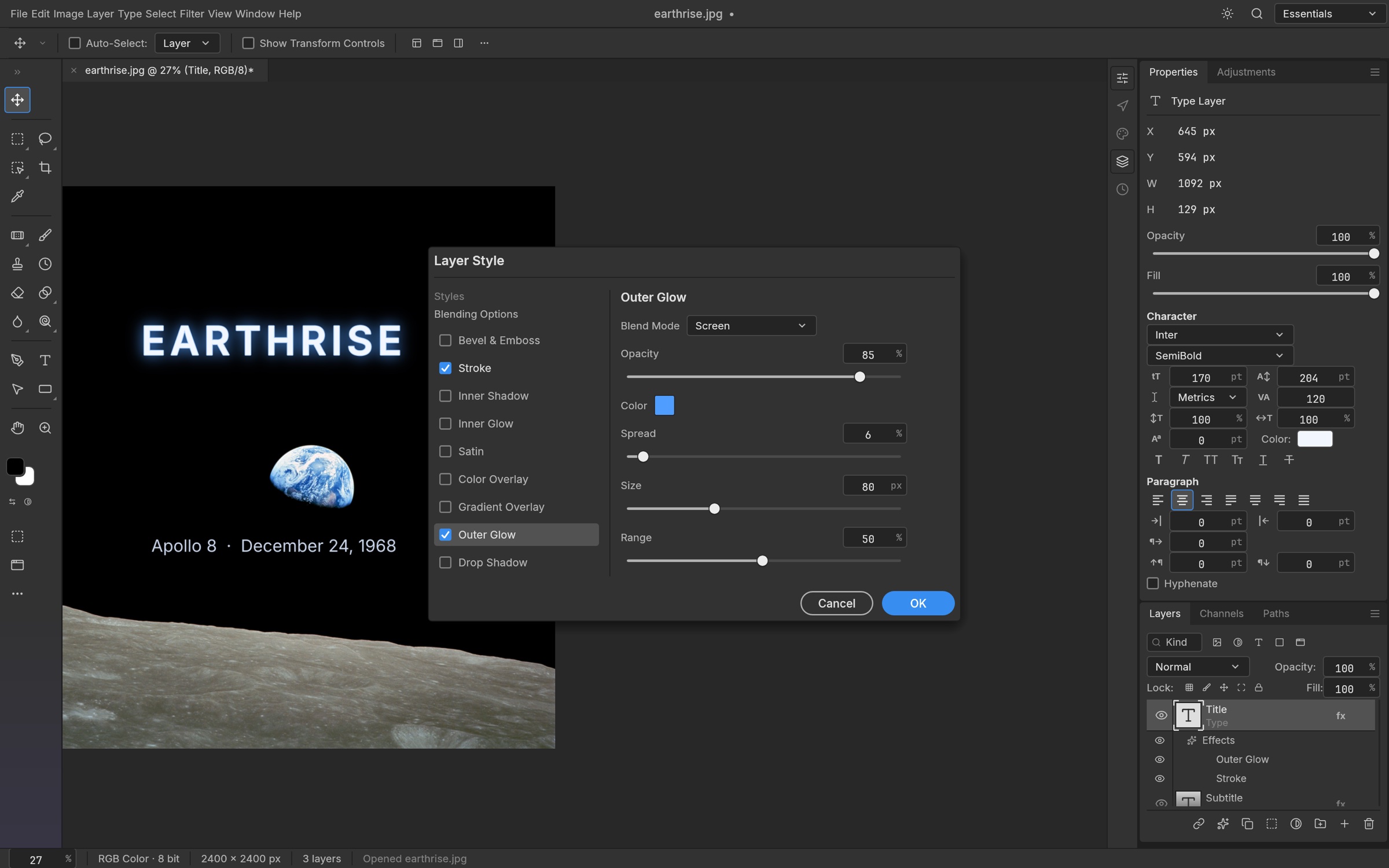
| Layer styles | Drop Shadow, Stroke, Outer and Inner Glow, Bevel & Emboss, Color/Gradient/Pattern Overlay, Satin |
| Text layers | Editable on the canvas, with font, size, leading, tracking and alignment |
| Smart objects | Kept as smart objects, smart filters included |
| Shape layers | Kept as vectors, with their fills and strokes |
| Colour and depth | RGB, CMYK, Grayscale and Lab at 8, 16 or 32 bits per channel, with embedded colour profiles |
Anything PhotoRiya doesn't understand yet is carried along unchanged when you save, rather than thrown away.
The Photoshop features you'll use most
If you've used Photoshop before, you already know where things are. If you haven't, these are the ones worth learning first.
Change text
Pick the Type tool (T) and click into a text layer, or double-click the layer's thumbnail. Use the Character and Paragraph controls for font, size, colour, spacing and alignment.
Move, resize and rotate
Select a layer and press Ctrl+T (⌘+T) for Free Transform. Drag the handles to scale, drag outside the box to rotate, and press Enter to apply. Skew, distort and perspective are in .
Fix the colours without touching the original
Add an adjustment layer from : Curves, Levels, Hue/Saturation, Vibrance and a dozen others. They sit above your image as their own layers, so you can change them, mask them to one area or switch them off later. To apply an adjustment directly to the pixels instead, use (Curves is Ctrl+M, Levels is Ctrl+L).
Select and mask
The marquees, lassos and Magic Wand are all there, along with Quick Selection, Object Selection and , which find the edges for you. These run on your own computer, not in the cloud. Turn any selection into a layer mask to hide part of a layer without deleting it.
Add shadows, outlines and glows
Open and pick an effect. Styles work on any layer, including text, and stay editable.
Filters with a live preview
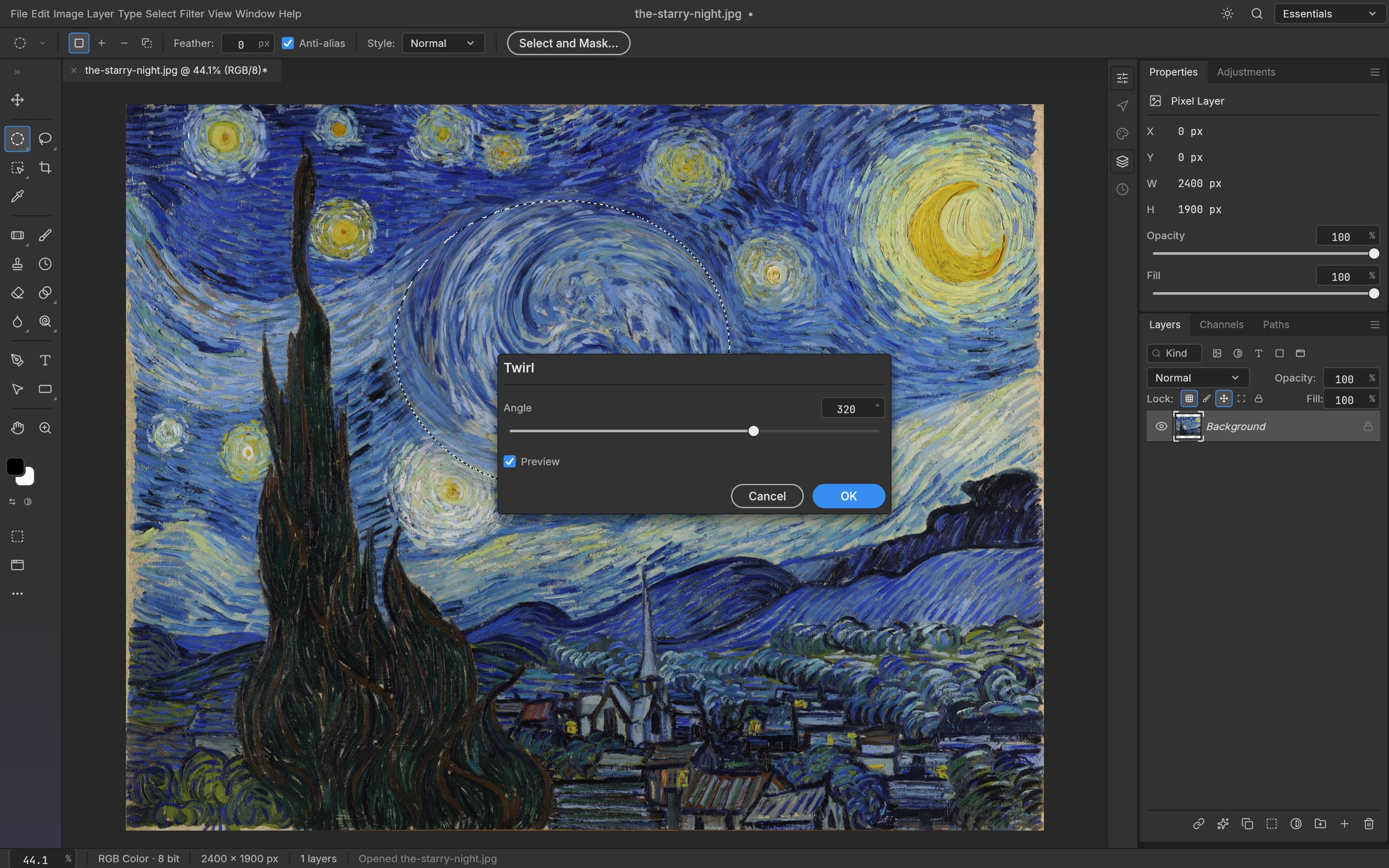
The menu has Gaussian Blur, Unsharp Mask, Reduce Noise, the Blur Gallery, distortions, Oil Paint and more. Each one previews right on the canvas, and only inside your selection if you have one.
Undo anything
Every step is listed in the History panel. Click an earlier step to go back to it.
Can't remember where something is? Press Ctrl+K (⌘+K) and type what you're looking for, like "curves" or "drop shadow", to search every command.
Good to know before you start
PhotoRiya is young, and we'd rather tell you its limits up front.
- Most PSDs look the same as in Photoshop, but not every one does yet. Files with unusual effects or heavy smart-filter stacks can render slightly differently. Layers, masks and text still come through, so you can keep working.
- Fonts. Text layers show exactly as Photoshop drew them until you edit them. If the PSD uses a font PhotoRiya doesn't have, lets you pick a replacement.
- Very large files. A browser tab can only use so much memory. For huge PSB files, the free desktop app for macOS, Windows and Linux uses the same engine without that limit.
- Use a computer. PhotoRiya works best with a mouse or pen and a keyboard on a laptop or desktop.
Questions people ask
Is PhotoRiya really free?
Yes. There's no trial, no watermark and no account. PhotoRiya is open source under the MIT and Apache 2.0 licenses, and the code is on GitHub.
Are my files uploaded anywhere?
No. The editor runs entirely in your browser on your own device. Your images are never sent to a server.
Can I open the file in Photoshop again afterwards?
Yes. writes a standard .psd file with your layers, masks, adjustment layers, layer styles and text, so a Photoshop user can pick up where you left off.
Does it open PSB files?
Yes, PhotoRiya opens and saves .psb files. For very large ones, use the desktop app.
What other formats can it open?
PNG, JPEG, TIFF, WebP, GIF, BMP, TGA, OpenEXR, AVIF and more. You can open any of them, add layers, and save the result as a PSD.
Is PhotoRiya made by Adobe?
No. PhotoRiya is an independent open-source project. It reads and writes Photoshop's file format and follows its layout so it feels familiar, but it isn't affiliated with Adobe.