 PhotoRiya
How to Edit Text in a PSD File Without Installation
Edit live PSD text in your browser - change fonts, size, color, rebuild rasterized text, and save layered PSDs for future edits.
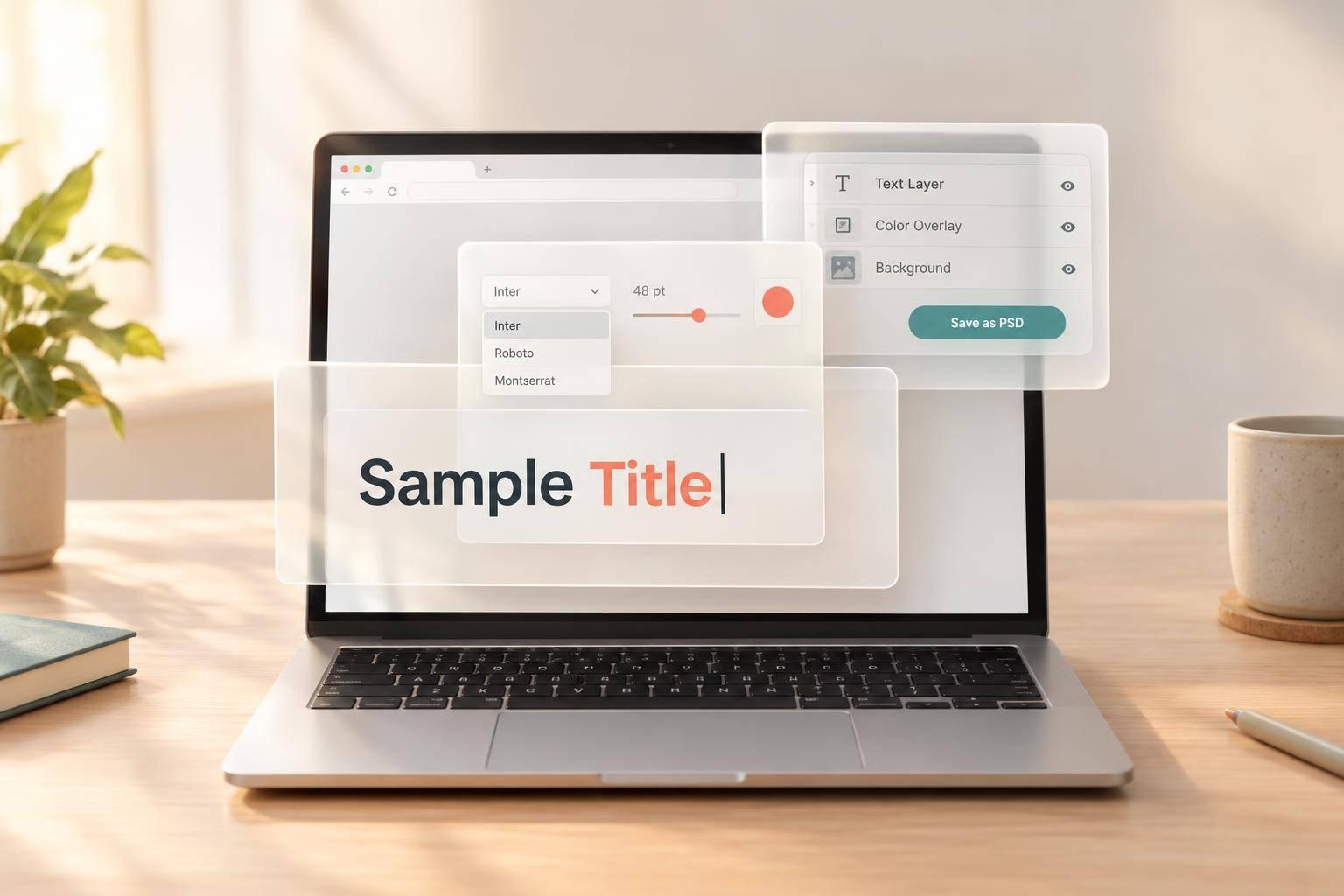
I can edit PSD text in PhotoRiya without installing software - as long as the file has a live text layer. Open your PSD at photoriya.com, select the layer marked T, and use the Type tool to replace the wording.
Here’s what I check before saving:
- Text and layout: Match the font, size, color, and alignment. Resize the text box without stretching the letters.
- Missing fonts: Load the original licensed font or choose a close match, then check spacing and line breaks.
- Pixel-based text: Rasterized or flattened text needs a new text layer; it can’t be edited as wording.
- Saved files: <u>Keep the layered PSD</u> for later edits, reopen it to check the result, and export a PNG or JPG for sharing.
How to Edit PSD Text Without Installation
How To Edit Text In Psd File
sbb-itb-b27e52d
Edit an Existing Text Layer
With the PSD open, select the text layer you want to edit.
Find the Text Layer and Edit the Text
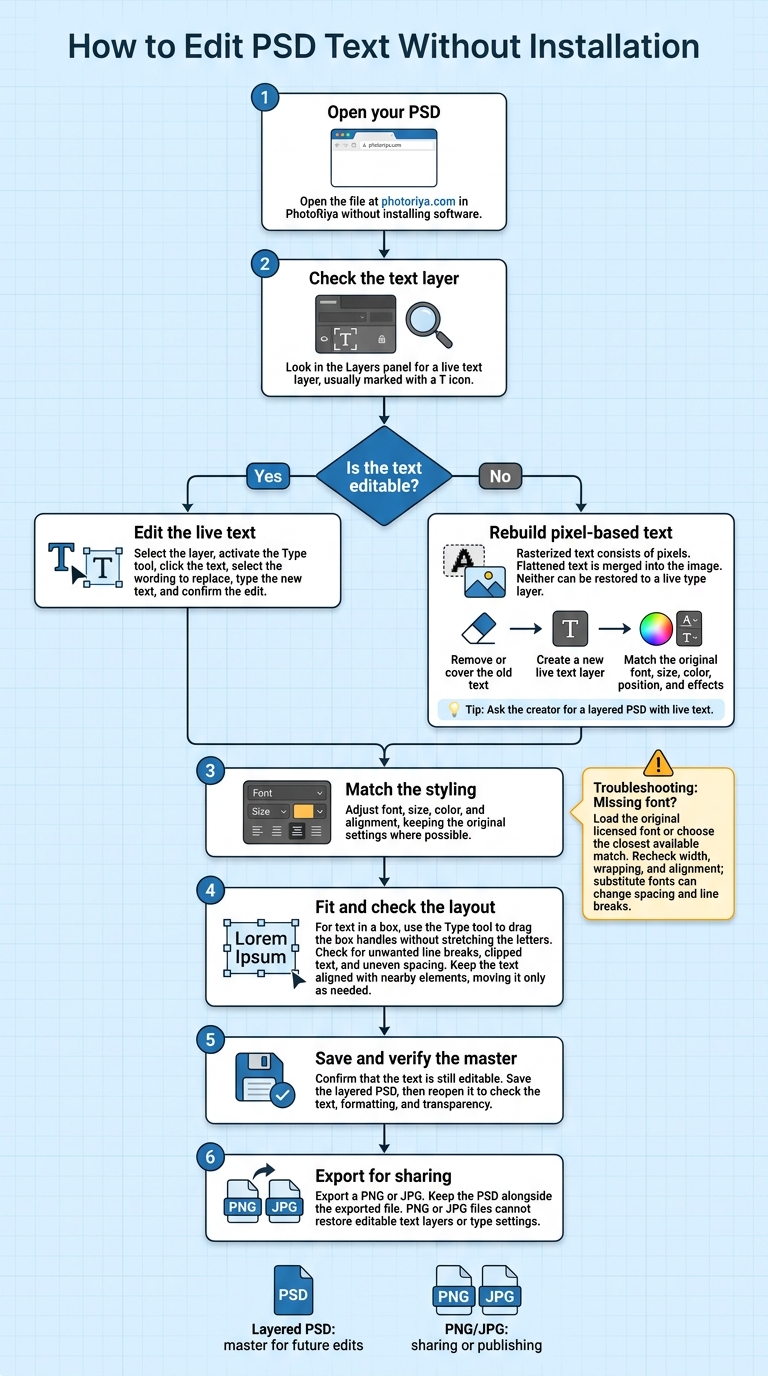
In the Layers panel, choose the editable text layer, usually marked with a T icon. Activate the Type tool, click the text, and select the wording you want to replace. Type your new text, then confirm the edit.
Next, match the font and styling to the original design.
Match the Font, Size, Color, and Alignment
Select the text you want to format with the Type tool. Use the text controls to adjust its font, size, color, and alignment, keeping the original settings where possible.
Then resize the text box so the updated copy fits neatly.
Resize the Text Box and Check the Layout
For text in a box, use the Type tool to drag the box handles without stretching the letters. Check for unwanted line breaks, clipped text, and uneven spacing.
Keep the text aligned with nearby elements, moving it only as needed.
Handle Missing Fonts and Noneditable Text
A missing font doesn’t always prevent editing. Rasterized or flattened text, however, must be rebuilt.
Check for Missing Fonts
If you can edit the text but it looks wrong, the font is usually the cause.
Check the font indicator for missing typefaces. A substitute font can change spacing and line breaks, even when the text remains editable. Load the original licensed font, or choose the closest available match. Then recheck the text’s width, wrapping, and alignment.
If you can’t edit the text, rebuild it as a new type layer.
Rebuild Rasterized or Flattened Text
Rasterized text consists of pixels. Flattened text is merged into the image. Neither can be restored to a live type layer.
Remove or cover the old text, then create a new live text layer. Match the original font, size, color, position, and effects. Ask the creator for a layered PSD with live text.
Save a PSD or Export an Image
When you're done editing, save the layered PSD so you can make changes later. Then export a PNG or JPG for sharing.
Save and Check the Layered PSD
Before saving, check that the text is still an editable text layer. Save the PSD and reopen it to make sure the text, formatting, and transparency stayed intact.
Export PNG or JPG for Sharing
Export your finished design as a PNG or JPG for sharing or publishing. Keep the PSD alongside the exported file - a PNG or JPG can't restore editable text layers or type settings.
Conclusion: Keep Text Editable for Future Changes
Keep the layered PSD as your master file and export PNG or JPG files only for sharing. Save the editable version separately so future text changes use the live type layer - not a flattened image.
FAQs
Why can’t I edit a text layer marked T?
A layer marked “T” may not be editable if the web editor didn’t preserve its text data. This often happens when text is flattened or rasterized.
The layer then acts like a static image, so PhotoRiya can’t change its wording, font, size, or color. Your only options are to edit the pixels around the existing text or recreate the text from scratch.
How do I fit longer text without changing the layout?
Select the text layer in your browser-based editor. In the character panel, lower the font size or reduce tracking (the space between characters). If your text is in a paragraph box, reduce leading (line spacing) to make the block more compact.
Still doesn’t fit? Try a more condensed font style or split the text across multiple lines while keeping the original design proportions.
Should I export my design as PNG or JPG?
Use PNG when you need transparency or sharp edges and text without compression artifacts.
Choose JPG for smaller files and faster web loading. It works best for photographs and complex images where a slight loss in quality is acceptable.
Try PhotoRiya free
A photo editor that works like Photoshop, right in your browser. No install, no account.
Open PhotoRiya