 PhotoRiya
Local Image Editing: How It Protects Photo Privacy
Local image editing keeps photos off servers but isn’t full privacy—verify tools, check backups, remove metadata, and secure devices.
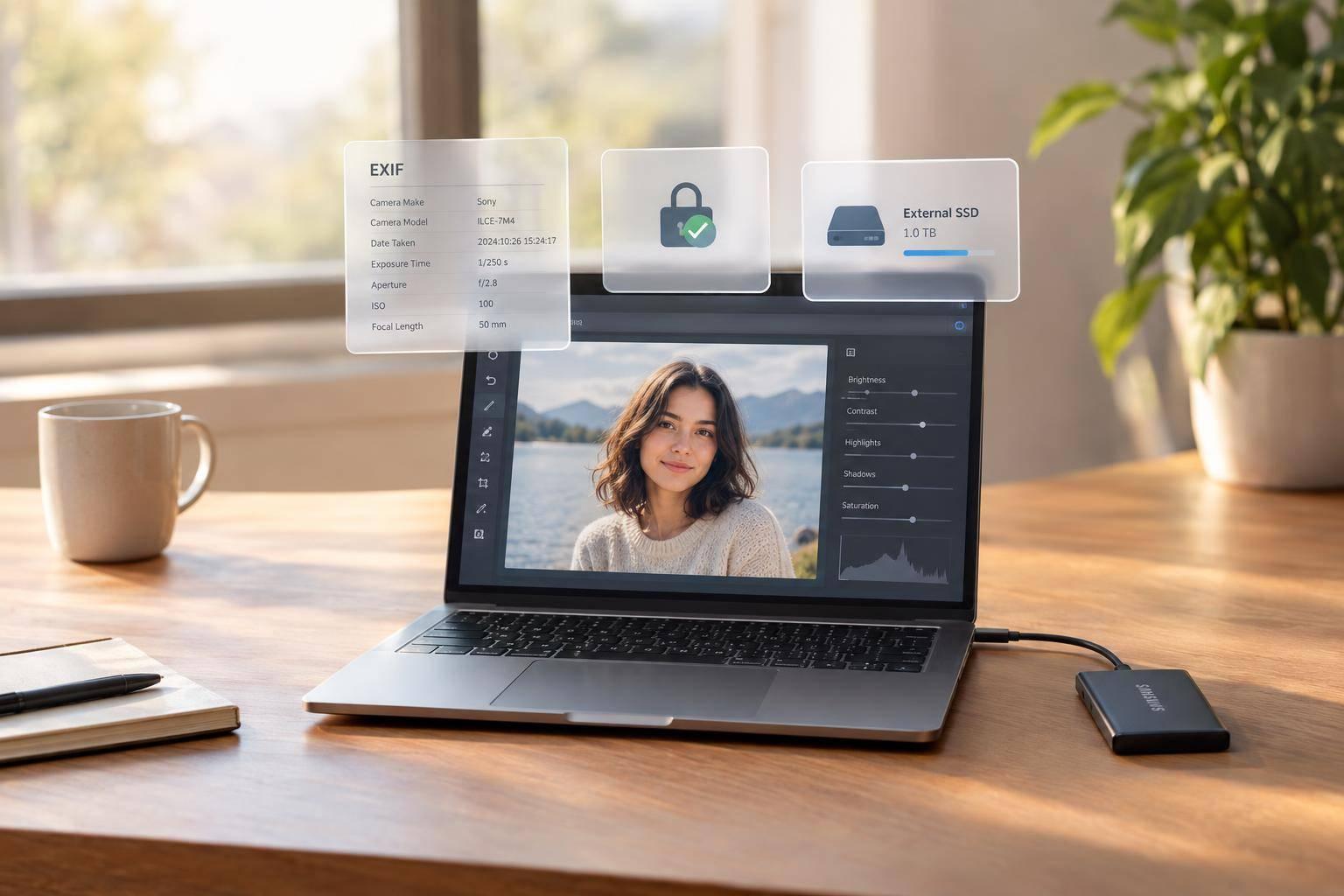
I use local image editing to keep photos off remote servers - not to protect every step of sharing them. Before editing a sensitive file, I check the feature’s documentation and test opening, editing, and exporting with a non-sensitive image.
PhotoRiya says its browser editor processes files locally and supports PSD layers, editable text, and effects. But working offline alone doesn’t prove a file will never upload.
Here’s what I check:
- Processing: Watch browser network requests during editing and after reconnecting.
- Storage: Keep source files, PSDs, and exports out of folders that sync to the cloud.
- Device access: Use a secure device, a strong login, and disk encryption.
- Sharing: Remove private metadata, check the image, and send only the final export - not a PSD with hidden layers.
My rule: <u>check the editing tool and the file’s path to the recipient</u>. Local editing limits server exposure; backups, device access, and shared copies still need separate checks.
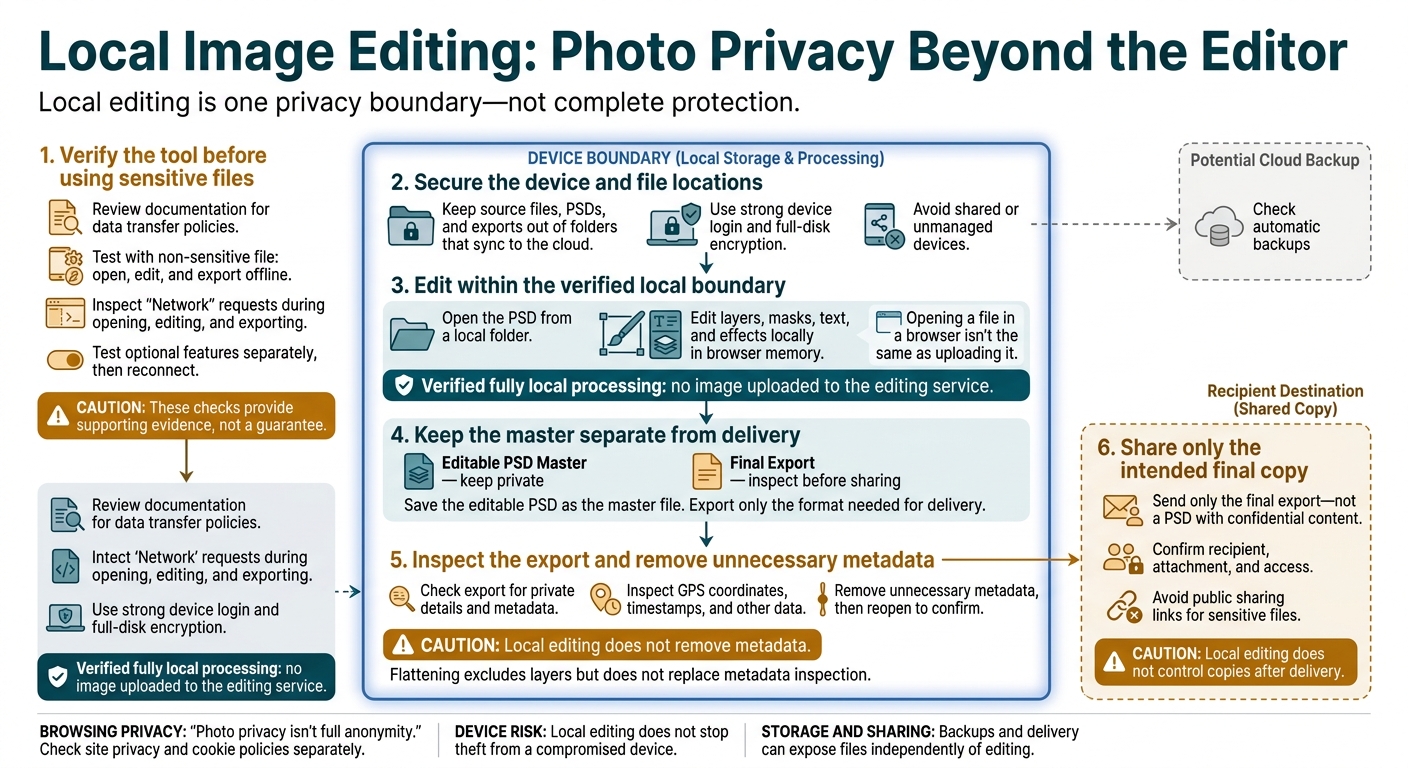
Local Image Editing: Photo Privacy Beyond the Editor
What Local Image Processing Protects
When you open a photo or PSD, the editor loads it into your browser’s memory, edits it there, and saves the result locally. Opening a file in a browser isn’t the same as uploading it.
Photo Content and Embedded Metadata
Local processing keeps the image and its embedded metadata on your device. This limits server-side storage and third-party access, but it doesn’t automatically remove metadata from the file.
Local editing protects your photo, not your browsing activity. Photo privacy isn’t full anonymity. Check the site’s privacy and cookie policies to see what it collects about your visit. That’s separate from how it handles your photos.
Local Editing vs. Server-Side Editing
| Privacy concern | Fully local editing | Server-side editing |
|---|---|---|
| Processing location | Your device processes the file. | A remote server processes uploaded data. |
| Server copies | No image is uploaded to the service. | Uploaded data reaches the server. |
| Retention and backups | There’s no uploaded image for the service to retain. | Storage duration and backup handling depend on the service’s policies. |
| Third-party access | No uploaded image is available for server-side access. | Access may depend on the service’s providers and security controls. |
Skipping uploads removes a major route for exposure: the service can’t leak, review, or analyze data it never receives. But local processing doesn’t protect the saved file, your device, or your backups.
Next, check that each feature stays local in practice.
sbb-itb-b27e52d
How to Check Local-Processing Claims
Check each feature separately. A “local” label alone doesn’t prove your files stay on your device.
Review Documentation for Each Feature
Read the documentation to see whether each feature uploads image content or metadata. Ask what leaves your device, when it leaves, and whether it includes content, metadata, or both.
Don’t use sensitive files until you understand the processing path. If the documentation is vague, start with an offline test using a non-sensitive file.
Test Offline Editing and Network Activity
Load a non-sensitive file, disconnect from the internet, and try opening, editing, and exporting it. This helps you check which actions can run on your device.
| Signal | What it supports | What it cannot prove |
|---|---|---|
| Opening, editing, and exporting work offline | Those actions can run without a live server connection. | The file will never be synced or uploaded later. |
The preview loads from a browser-managed blob: URL. |
The preview uses a browser-managed object. | The same content has not also been uploaded. |
| No file transfer appears in Network tools. | No obvious upload occurred during the actions you watched. | Every feature and later session stays local. |
For a second check, open your browser’s developer tools and select Network before opening the test file. Watch requests as you open, edit, and export. Inspect their destinations and payloads - not just their names.
Test optional features separately. Then reconnect and watch for delayed transfers. These checks provide supporting evidence, not a guarantee.
Use PhotoRiya for Sensitive Files
After you’ve confirmed that processing stays local, use this workflow for files that must remain private. It protects the editing step, but storage, backups, and sharing need separate checks.
Edit and Save PSD Files Locally
For sensitive PSD work, open, edit, and export locally to keep working files off remote servers.
PhotoRiya supports PSD files while preserving layers, editable text, and effects. It also supports formats such as JPG, PNG, TIFF, and WebP.
- Open the PSD from a local folder that doesn’t sync automatically.
- Edit layers, masks, text, and effects, keeping draft layers separate from the delivery file.
- Save the editable PSD as your master file.
- Export only the format needed for delivery.
- Check the export for private details and metadata before sharing.
Local editing reduces exposure to servers. How you store, secure, and share the file still matters.
Check Backups, Device Security, and Metadata
Check whether the source, PSD, and export folders have automatic cloud backups enabled. Use a strong device login and full-disk encryption where available. Avoid shared or unmanaged devices: local processing won’t protect files that another app uploads or someone else accesses on your device.
Local editing does not remove metadata. Check the export for GPS coordinates, timestamps, and other metadata. Remove anything the recipient doesn’t need, then reopen the file to confirm the removal.
Share Only What Recipients Need
Send only the final export - not a PSD with confidential layers or hidden content. A flattened image leaves editable layers out of the delivery, but you still need to check its content and metadata. Confirm who can access the file, and avoid public sharing links for sensitive files.
| Risk | Avoiding uploads during editing: protection and limits | What you still need to do |
|---|---|---|
| Keeps the working file off the server during editing. | Check the recipient and attachment before sending. | |
| Messaging | Keeps editing separate from delivery. | Send only the final export. |
| Automatic backups | Editing stays local, but backups can still upload files. | Check sync settings for source, PSD, and export folders. |
| Malware | Local editing does not stop theft from a compromised device. | Avoid shared or unmanaged devices. |
| Recipient redistribution | Does not control copies after delivery. | Share only with intended recipients. |
Conclusion: Protect Photos Beyond Editing
Local processing keeps image data on your device, not on remote servers. PhotoRiya’s browser editor processes files locally without uploading them, while keeping layers, editable text, and effects intact.
But that privacy claim needs proof for each feature. Before working with sensitive photos, check the documentation and monitor network activity using a non-sensitive test file. Offline editing helps support the claim, but it doesn’t prove that no data gets sent when you reconnect.
Local editing is one privacy boundary - not complete protection. Editing is just one step. Secure your device, review storage and backup settings, and remove metadata and unneeded PSD layers before sharing.
FAQs
Can browser extensions access photos I edit locally?
Yes. Local processing keeps your images off remote servers, but it doesn’t prevent browser extensions from accessing them. Extensions with broad permissions may read, change, or intercept data in your browser tabs - including photos you’re editing.
To protect your privacy, review your installed extensions and restrict their permissions to sites where you need them. You can also use a separate, privacy-focused browser profile for sensitive tasks.
How can I check an exported photo for GPS metadata?
The provided search results don’t explain how to check whether an exported photo contains GPS metadata.
Can my browser retain photo data after editing?
Yes. Even if an editor processes images locally on your device, your browser may cache files or save temporary photo data in local storage. Clear your browser cache and site data after editing sensitive photos.
Local processing also doesn't prevent exposure through cloud backups, shared devices, or photos you share later.
Keep reading
Try PhotoRiya free
A photo editor that works like Photoshop, right in your browser. No install, no account.
Open PhotoRiya