 PhotoRiya
How to Edit PSD Files Online Without Losing Layers
Edit from the original layered PSD and keep layers editable: edit non‑destructively, save a verified PSD copy, export PNG/JPG separately.
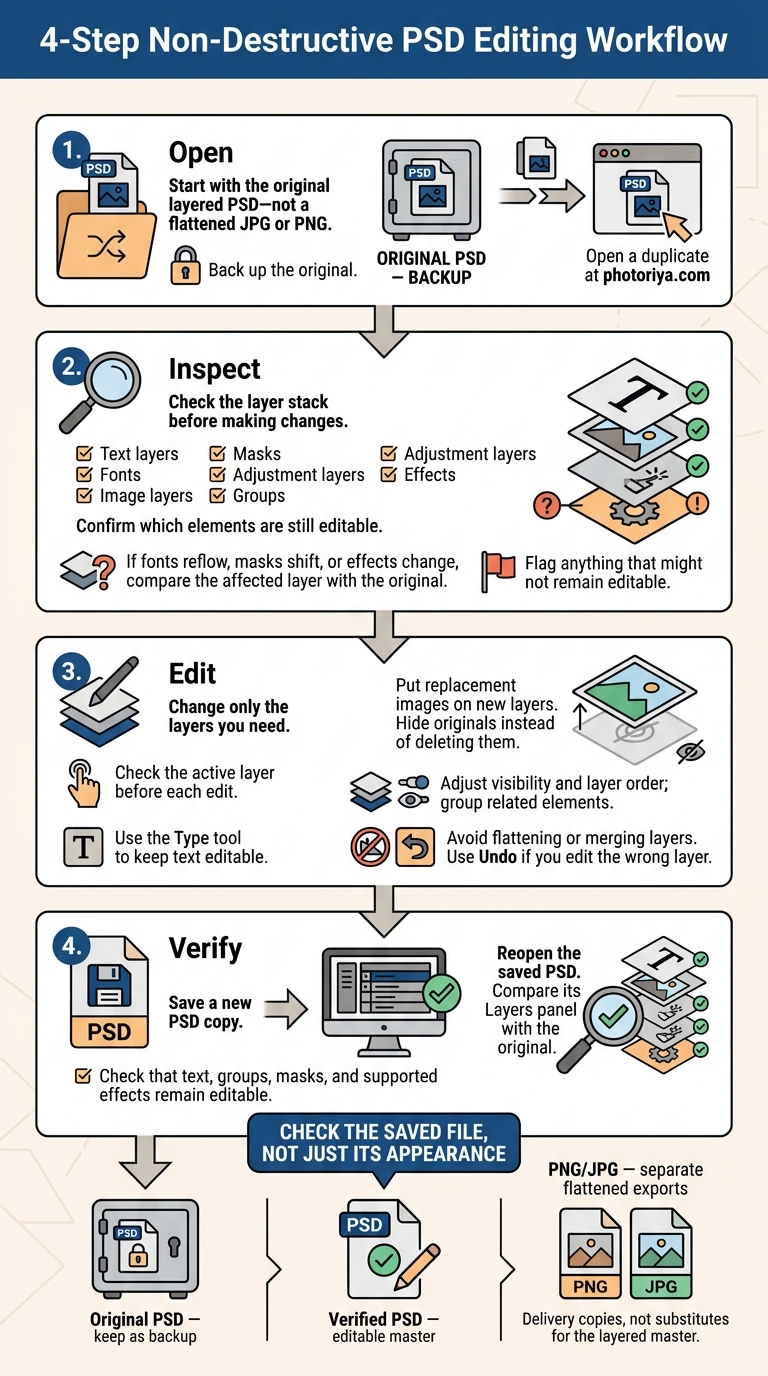
I keep PSD layers editable by starting with the original layered file - not a flattened JPG or PNG. My workflow has 4 steps: open, inspect, edit, and verify.
- Open: I back up the original, then open a duplicate at photoriya.com.
- Inspect: I check text, fonts, images, masks, groups, adjustment layers, and effects before editing.
- Edit: I change only the layers I need, keep replacement images on new layers, and hide originals instead of deleting them.
- Verify: I save a new PSD copy and reopen it to check that its layers remain editable.
My rule: <u>check the saved file, not just its appearance</u>. I keep the PSD as my editable master and export PNG or JPG copies separately.
Edit PSD Files Online Without Losing Layers
Inspect Layers and Check PSD Compatibility
Once you open the PSD file in your browser and it loads, open the layer panel and check the stack before making changes. Confirm which elements are still editable.
Identify Layers and Editable Elements
Find the elements you need to edit:
- Text layers
- Image layers
- Masks
- Adjustment layers
- Groups
Flag anything that might not remain editable before you begin. Then check whether fonts, masks, and effects still match the original.
Check Fonts, Masks, and Effects for Changes
If fonts reflow, masks shift, or effects change, compare the affected layer with the original. Note what the editor preserved.
sbb-itb-b27e52d
Edit Layers Without Merging Them
Once you’ve checked compatibility, edit only the layers that need changes.
Edit Text and Replace Images
Select the text layer in Layers, then use the Type tool to change the text while keeping it editable.
Before replacing artwork, select the image layer. Put the replacement artwork on a new layer to keep the original PSD structure intact. Then hide the original image layer so you have a fallback.
Control Visibility, Layer Order, and Groups
After editing the content, adjust the layer stack instead of flattening it.
Check the active layer before each edit. Use the visibility icon to hide content rather than delete it. Drag layers in Layers to change their stacking order, and group related elements to keep the PSD editable. If you edit the wrong layer, use Undo.
Save and Verify the Layered PSD
Save a New PSD Copy
Save your edited file as a new PSD copy to keep its layers intact. Use the PSD as your editable master, and keep PNG or JPG exports as separate files.
Reopen the saved PSD and compare its Layers panel with the original. Check that text, groups, masks, and supported effects are still editable.
Conclusion: Keep the Original and a Verified PSD Copy
The safest PSD workflow is simple: edit non-destructively and check that your saved layers are still editable. Keep the original PSD and a checked, layered master for future edits. Use flattened exports only when delivery requires them.
FAQs
Can I recover layers from a flattened PSD?
No. Flattening a PSD merges all layers into one background layer and permanently discards the original layer structure, masks, and effects.
To keep your work editable, save the PSD with its layers intact. Wait to flatten until you’ve finished all edits and are ready to export the final version for distribution.
What if my PSD uses missing fonts?
If your PSD uses fonts that aren’t available, its text layers will usually appear in a default system font. To replace a missing font, select the text layer and choose one from the editor’s font menu.
To keep the original design, install the original font file on your device. If the editor supports custom font imports, you can upload it instead. Check how the text looks and fits in the layout before saving.
How do I handle unsupported layer effects?
Unsupported layer effects may look different from how they appeared in the original software. Start by checking the layer properties panel to see whether the layer is a smart object or has already been rasterized.
To preserve its appearance, you can often rasterize the layer, turning the effect into permanent pixels. If you want to keep the effect editable, recreate it with the editor’s native tools.
Try PhotoRiya free
A photo editor that works like Photoshop, right in your browser. No install, no account.
Open PhotoRiya