 PhotoRiya
PSD Text Looks Wrong? Common Causes and Simple Fixes
Fix PSD text by restoring fonts, matching weight/spacing, checking rendering/effects and masks, and saving an editable PSD copy.
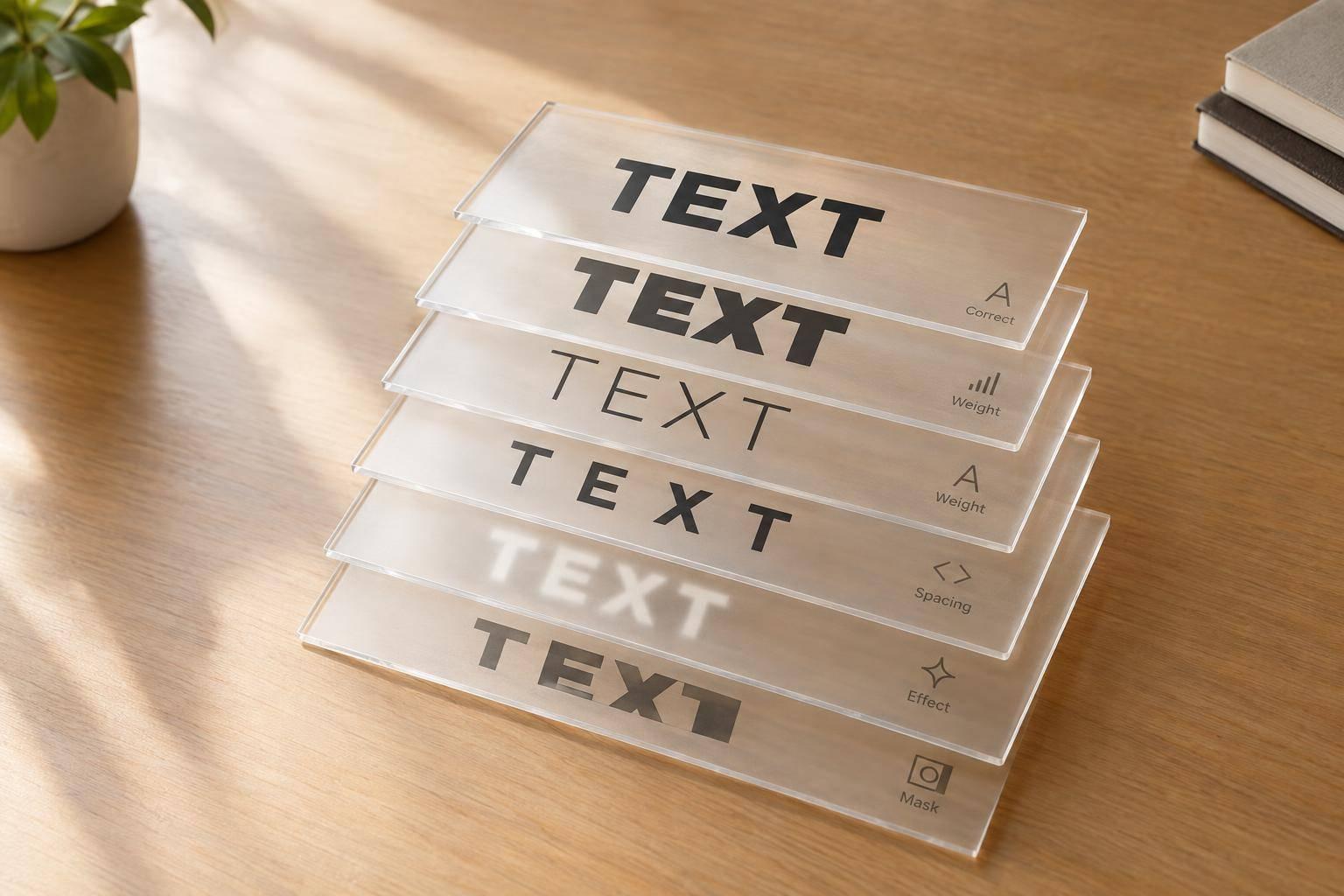
PSD text looks wrong? I check the font first - not the wording. In PhotoRiya, a missing font or wrong weight can change letter shapes and line breaks without damaging the text.
I use 3 checks to find the cause:
- Font and layout: Match the font, weight, size, spacing, alignment, and text box dimensions.
- Appearance: Compare at the same zoom level, then check text rendering, layer effects, masks, and adjustments.
- Saved file: Save a new PSD copy, reopen it, and confirm I can still edit the characters.
My rule: <u>keep the text editable</u>. I fix the settings before rewriting or rasterizing the text.
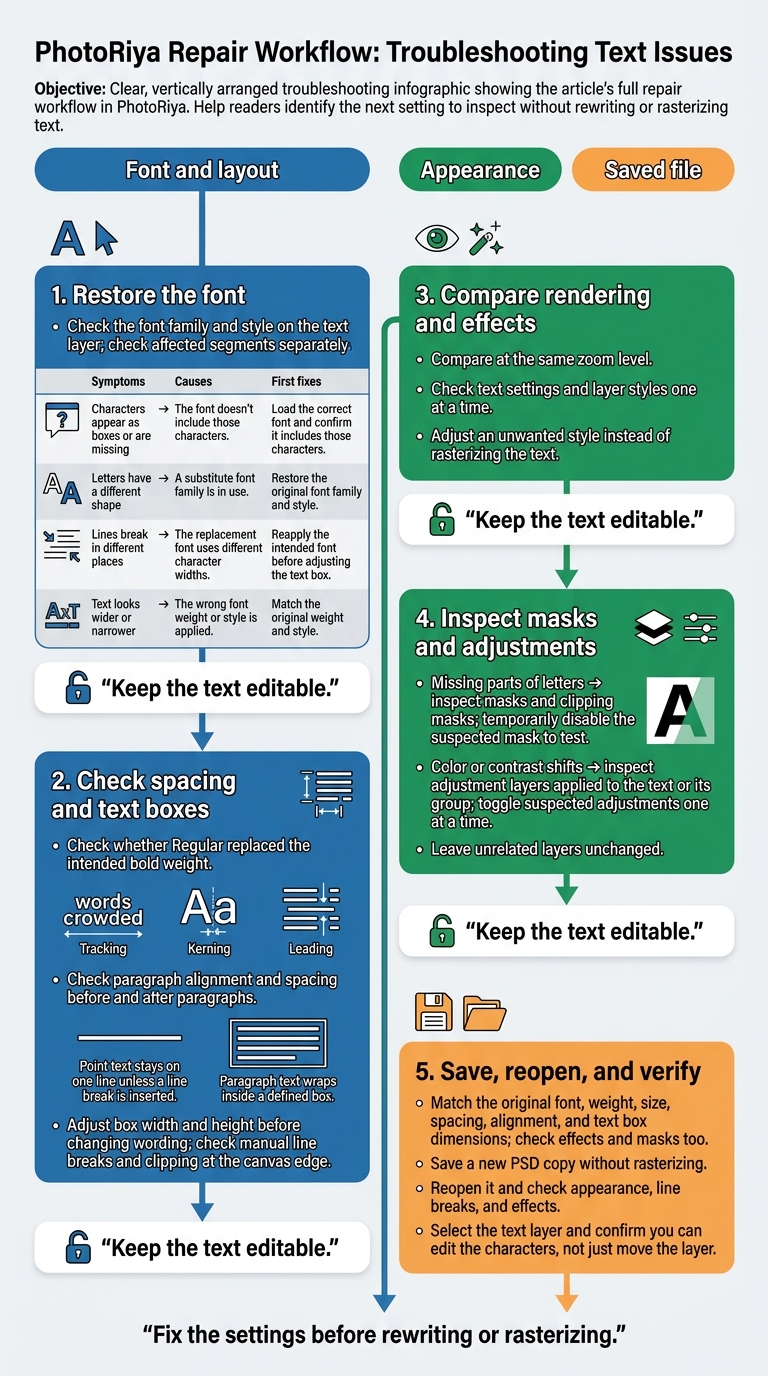
PSD Text Troubleshooting: Fix and Verify
Restore Missing or Substituted Fonts
Select the text layer and check its font family and style. If only part of the text looks wrong, check that segment separately.
Fix the font first. A substitute font can change both letter shapes and line breaks.
Match Font Problems to First Fixes
| What appears wrong | Likely cause | First fix |
|---|---|---|
| Characters appear as boxes or are missing | The font doesn’t include those characters. | Load the correct font and confirm it includes those characters. |
| Letters have a different shape | A substitute font family is in use. | Restore the original font family and style. |
| Lines break in different places | The replacement font uses different character widths. | Reapply the intended font before adjusting the text box. |
| Text looks wider or narrower | The wrong font weight or style is applied. | Match the original weight and style. |
After correcting the font, check the text against the original layout. If the letters look right but the layout still shifts, check spacing next.
sbb-itb-b27e52d
Fix Text Spacing and Line Breaks
If the font is right but the text still looks off, check spacing and line breaks, then the text-box dimensions. Don’t rewrite the text to make it fit until you’ve checked these settings.
Check Weight, Tracking, Kerning, and Leading
Start by checking whether Regular replaced the intended bold weight. Then review tracking, kerning, leading, and paragraph spacing before changing any values.
If a whole line looks crowded, check tracking. If just two neighboring letters look awkward, check kerning. Adjust leading when lines sit too close together or too far apart. Also check paragraph alignment and the space before and after each paragraph.
Resize Text Boxes to Prevent Wrapping or Clipping
Point text stays on one line unless you insert a line break. Paragraph text wraps inside a defined box, so adjust the box’s width and height before changing the wording.
Widen the box slightly to see whether the text reflows or retains manual line breaks. Check for clipping at the canvas edge, too. Increase the box’s width or height as needed to match the original wrapping and prevent clipping. Keep the text editable.
Check Text Rendering, Effects, and Masks
If the font, spacing, and text box are correct, check rendering and layer effects. Text can look heavier, softer, or sharper even when the font, size, and spacing match. View the PSD at the same zoom level before making changes.
Review Text Settings and Layer Styles
Check text settings and layer styles one at a time to find the cause. If a style creates the unwanted look, adjust it rather than rasterizing the text. If that doesn’t fix the issue, check masks and adjustments next.
Inspect Masks and Adjustments Affecting Text
Masks or adjustments may cause missing letters or color shifts. When parts of letters disappear, check for masks or clipping masks that could be hiding the text. Temporarily disable the suspected mask to see if the missing area returns.
For color or contrast shifts, inspect adjustment layers applied to the text or its group. Toggle each suspected adjustment one at a time and compare the results. Leave unrelated layers unchanged, and keep the text editable while you test.
Conclusion: Save and Verify Editable Text in PhotoRiya
Before saving, check that the repaired text matches the original font, weight, size, spacing, alignment, and text box dimensions. Check the effects and masks, too.
PhotoRiya preserves editable text, layers, and layer effects when opening and saving PSDs. Save a new PSD copy without rasterizing the text.
Reopen that copy and check its appearance, line breaks, and effects. Select the text layer and confirm you can edit the characters, not just move the layer. This checks that the repair survived saving and the text remains editable.
FAQs
What if I can’t find the original font?
Choose a replacement font with a similar weight, width, and style to keep your layout balanced. Load it into your editor, then apply it to the text layer.
Different fonts can change how text flows. If your design relies on precise spacing, you may need to tweak character spacing (tracking) or line height.
How can I tell if text is clipped or masked?
Check the Layers panel for a small, indented arrow pointing down toward the layer directly below the text layer. This means the text is clipped: the shape and visibility of the layer beneath it control which parts of the text appear.
You might also notice a small underline or a change in the layer thumbnail. If your text is cut off unexpectedly, look for these signs.
Will others need my fonts to edit the PSD?
Yes, collaborators need the exact same fonts installed on their devices to edit the PSD’s text without changing its appearance. If a font is missing, the browser-based editor may use a default font instead. That can change spacing, line breaks, and the overall design.
Share the required font files with collaborators, or confirm they have the same fonts installed before they open the project.
Keep reading
Try PhotoRiya free
A photo editor that works like Photoshop, right in your browser. No install, no account.
Open PhotoRiya