 PhotoRiya
How to Open PSD Files in Your Browser Without Setup
View and inspect PSD files in your browser without installing software—check layers, fonts, effects, troubleshoot loading, and save copies.
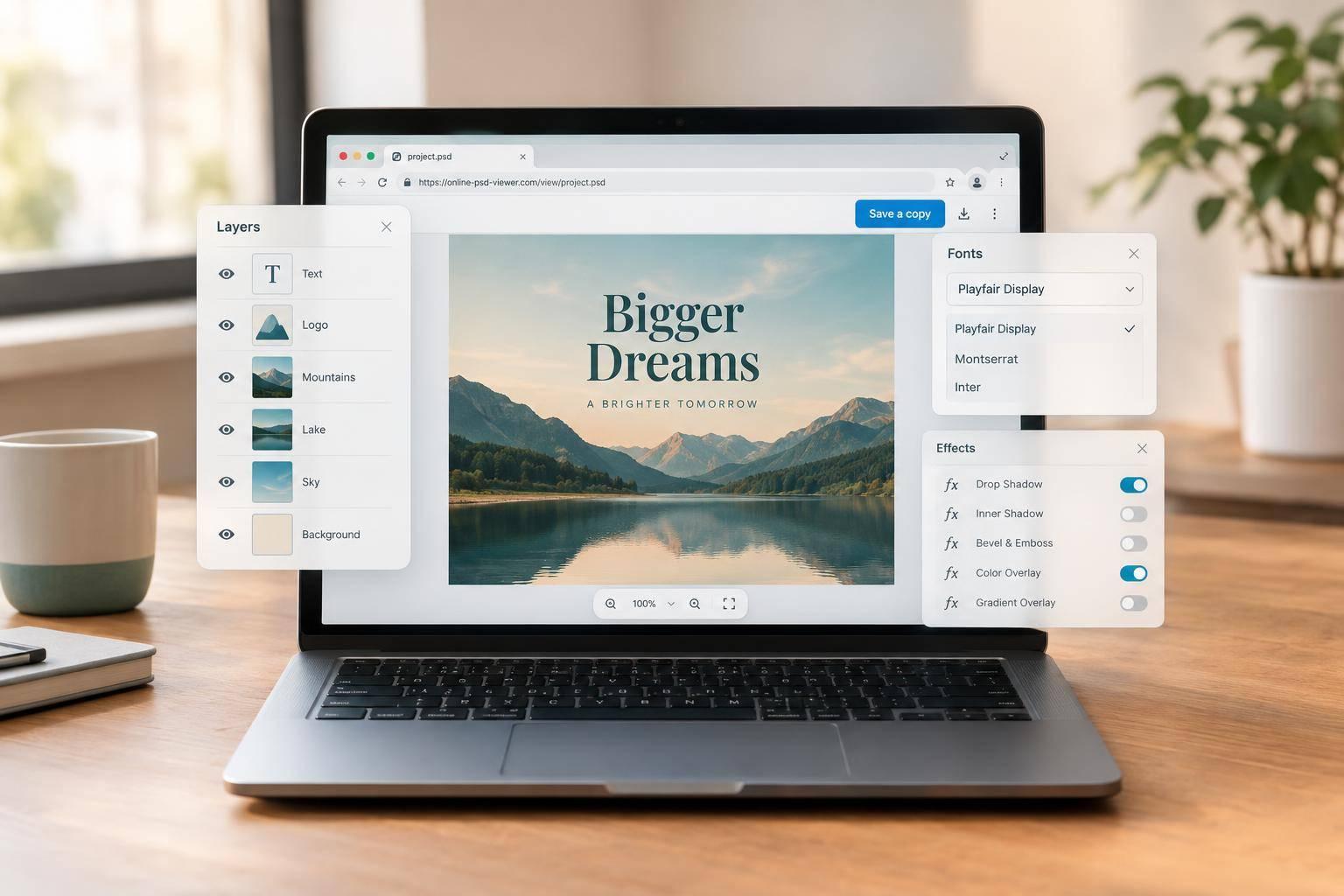
I can open a PSD at photoriya.com without installing software: select the original file or drag it into the editor. File processing stays on my device.
Here’s what I check before calling it done:
- Canvas and layers: Look for missing content, hidden layers, or layout changes.
- Fonts and effects: Check text, smart objects, colors, and effects. An opened file may not look exactly like the original.
- Loading problems: Retry a stalled file; large PSDs and browser or GPU limits can cause slow loading or display errors.
- Saving: <u>Keep the original unchanged</u>. Save a separate PSD for supported layers, or export PNG/JPG for a flat image, then check the saved result.
If I only need to view the file, I can close the browser without saving.
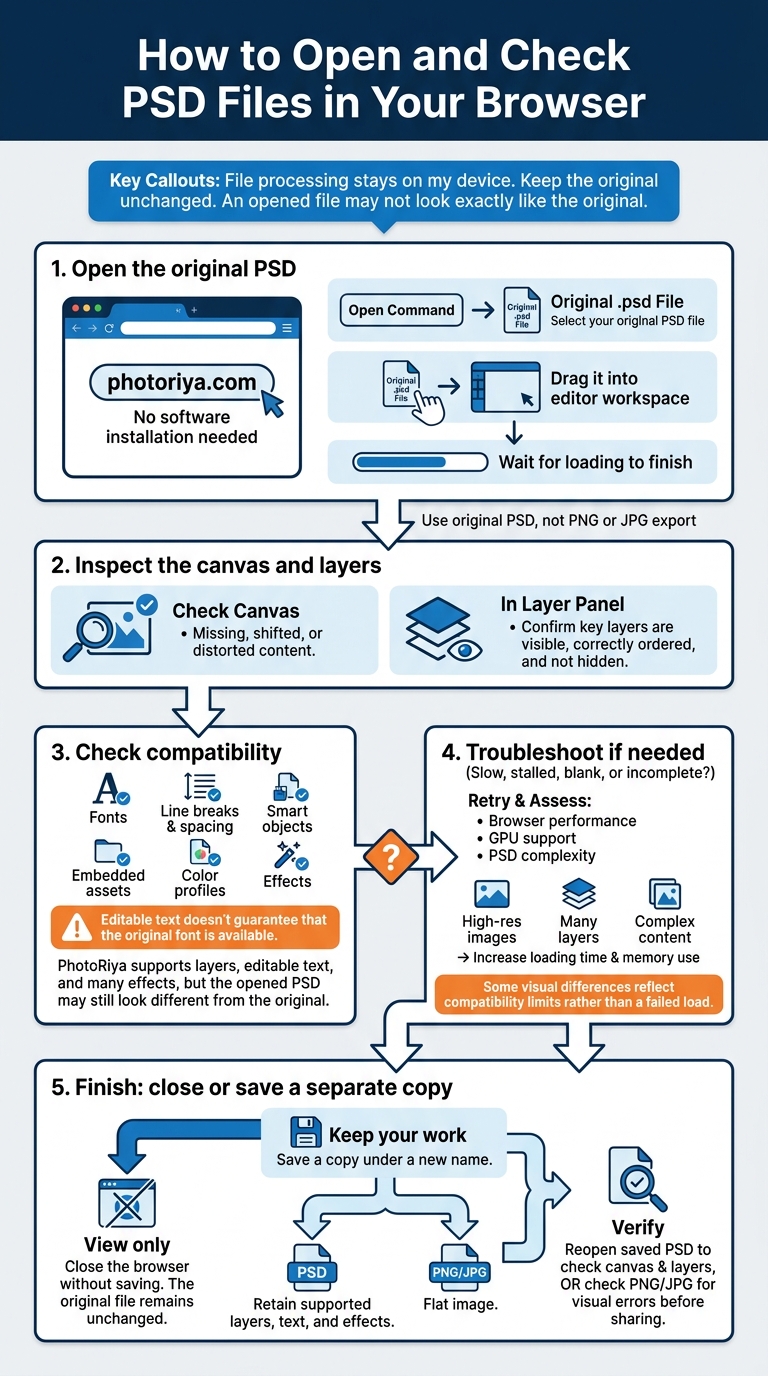
How to Open and Check PSD Files in Your Browser
How to open PSD file online using Photopea for free
sbb-itb-b27e52d
Load a Local PSD in PhotoRiya
Open the original .psd file to load its canvas and layers directly in PhotoRiya. Wait for the file to finish loading.
Open PhotoRiya and Choose Your PSD
Visit photoriya.com in your browser. Use the Open command to open your computer’s file picker, then select the original .psd file you want to view.
Use the file picker if it’s faster for you. Otherwise, drag the PSD into the editor.
Drag Your PSD Into the Editor
Drag the file from your computer and drop it into the editor workspace. Use the original PSD - not a PNG or JPG export.
Inspect the Canvas and Layers
Once the file loads, check the canvas for missing, shifted, or distorted content. If something looks off, move on to compatibility checks.
Check Layer Visibility
Open the layer panel. Make sure key layers are visible, in the correct order, and not hidden.
Check PSD Compatibility and Loading Issues
If the file opens but looks different, check compatibility before assuming the load failed. PhotoRiya supports layers, editable text, and many effects, but a PSD may still look different from the original.
Check Fonts, Effects, and Colors
Missing fonts can change text and shift the layout. Check the font, line breaks, and spacing. Editable text doesn’t guarantee that the original font is available.
Also check smart objects, embedded assets, color profiles, and effects. Missing elements, unexpected colors, or absent effects can help you spot whether the PSD opened correctly.
If the file still loads slowly or looks incomplete, check browser performance next.
Troubleshoot Slow Loading and Display Errors
High-resolution images, many layers, and complex content can take longer to load and use more memory. If loading stalls or the canvas looks blank or incomplete, retry the file and check whether the PSD is too complex for the browser to handle.
PhotoRiya relies on browser processing and GPU support. Limited support can slow loading or cause display errors. Some visual differences reflect compatibility limits rather than a failed load.
Close the File or Save a Separate Copy
When you’re done reviewing the PSD, close the browser. PhotoRiya leaves the original file unchanged.
Save Layers as PSD or Export PNG/JPG
Saving is optional. If you want to keep your work, save a copy under a new name. Choose PSD to keep supported layers, text, and effects, or PNG or JPG for a flat image.
Open the saved PSD once to check that its canvas and layers exported correctly. Before sharing a PNG or JPG, check it for visual errors.
FAQs
How can I tell if my PSD loaded correctly?
Check the layers panel for the individual layers and groups from your original document. Your PSD has loaded successfully if the image looks right in the main workspace and every expected element appears in the layers list.
If complex effects or specific font styles look different, the browser tool may have compatibility limits that prevent it from fully reading advanced Photoshop-specific features.
What should I do if my PSD’s fonts are missing?
Missing fonts mean the typefaces used in your PSD aren’t installed on your computer. The browser app usually replaces them with a default system font. Your text stays visible, but it may look different.
To restore the original appearance, install the required font files on your computer. You can still view the document and make basic edits without those fonts.
Could saving a PSD copy change its layers?
The provided search results don’t say whether saving a PSD copy in PhotoRiya changes its layers. I can’t confirm that behavior from those sources.
Keep reading
Try PhotoRiya free
A photo editor that works like Photoshop, right in your browser. No install, no account.
Open PhotoRiya