 PhotoRiya
Free Online Image Editors: 7 Features Worth Checking
Editable layers, masks, text, smart objects, and local processing are the real tests for any free online image editor—format support alone isn't enough.

I judge a free image editor by what stays editable after saving - not just what it can open. My first test: open a layered PSD, change some text, save it, and reopen it.
I check 7 features before trusting an editor with a project:
- File compatibility: Can I open and save the formats I need?
- Layers and masks: Can I still edit separate parts?
- Adjustment layers: Can I revise color and tone without changing the original pixels?
- Editable text: Can I change wording without turning type into pixels?
- Smart Objects: Can I edit or replace reusable artwork?
- Layer styles and blend modes: Do effects stay editable?
- Local processing: Does image editing happen on my device rather than a server?
PhotoRiya is the browser editor covered here. I’d test it with my own files: format support alone doesn’t promise that every detail survives. And <u>local processing doesn’t necessarily mean offline access</u>.
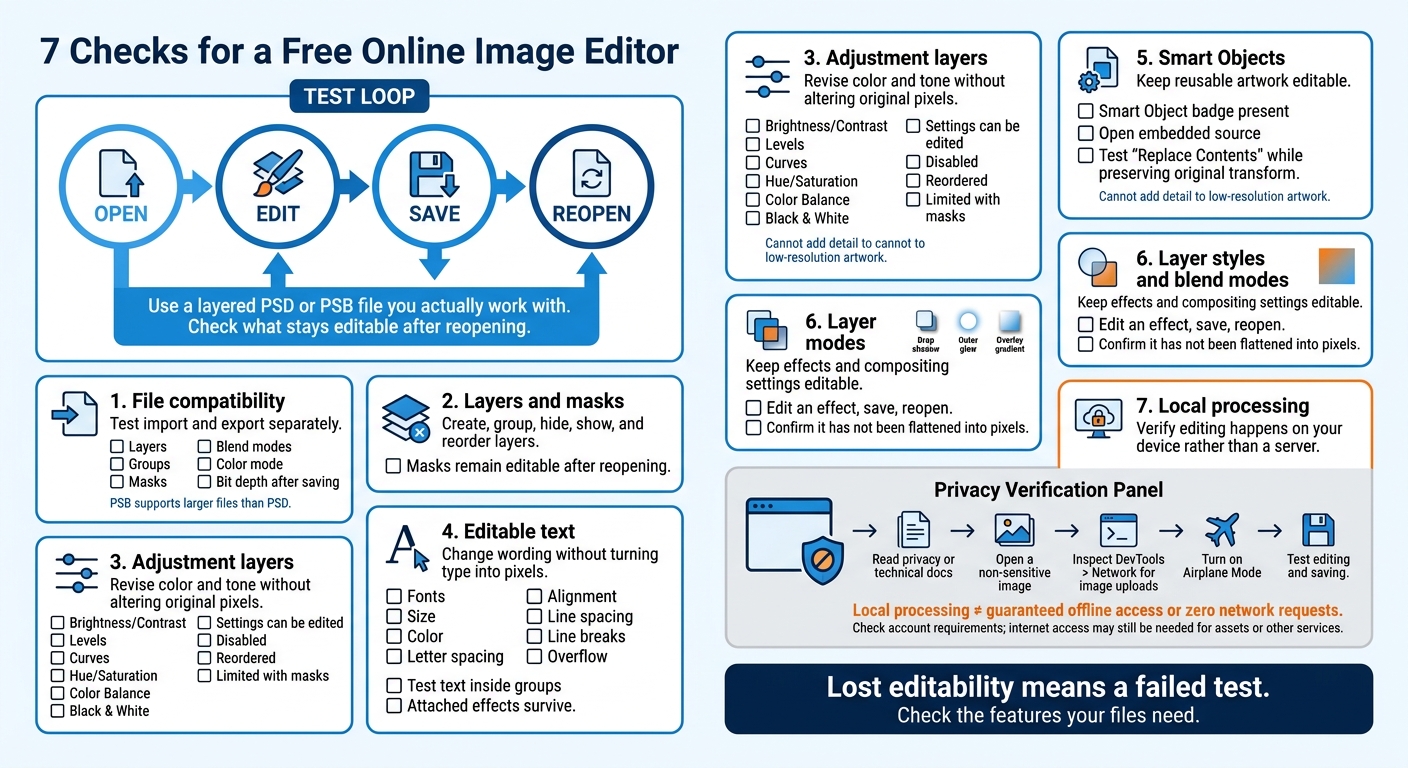
7 Checks for a Free Online Image Editor
1. Image Format Compatibility
What It Does
Format compatibility lets you open and save different file types while keeping layers, text, masks, and effects intact. That means you can reopen a file and keep working without rebuilding it.
When to Use It
You’ll need that file structure when revising wording, moving graphics, or adjusting a shadow later. For much larger documents, PSB supports larger files than PSD.
What to Check
Test your most-used formats in both directions: open, edit, and save. Check import and export separately for each format. After saving, verify layer groups, masks, blend modes, color mode, and bit depth.
PhotoRiya Support
PhotoRiya supports PSD, PSB, PNG, JPG, TIFF, WebP, GIF, BMP, TGA, EXR, and AVIF, along with RGB, CMYK, Lab, and 8-, 16-, and 32-bit workflows. Verify that the format you need preserves layers, text, effects, color mode, and bit depth.
sbb-itb-b27e52d
2. Layers and Masks
Once your PSD opens correctly, check whether its layers and masks stay editable.
What It Does
Layers keep elements separate, while groups organize related layers. Layer masks hide or reveal parts of a layer without deleting them.
When to Use It
Use layers to move or edit one element without affecting the rest. Use masks to hide areas you might want to bring back later.
What to Check
Make sure you can create, group, hide, show, and reorder layers. Check that masks remain editable in your PSD files, too.
PhotoRiya Support
PhotoRiya supports layers, groups, and layer masks. Try a sample PSD before using it for a larger project.
3. Adjustment Layers
What It Does
Once layers and masks work as expected, check that you can undo or revise color and tone edits.
Adjustment layers let you change color and tone without altering pixels or flattening the image. Unlike destructive filters, they let you revise settings or turn off the effect later.
When to Use It
Use adjustment layers to fine-tune brightness, fix a color cast, or try a black-and-white treatment.
What to Check
Look for brightness/contrast, levels, curves, hue/saturation, color balance, and black and white as adjustment layers - not just filters.
Check that you can edit their settings, disable them, change their order, and use masks to limit their effects to selected areas.
PhotoRiya Support
PhotoRiya supports adjustment layers. Try the adjustment types you use most in a sample file.
If they work as expected, check whether text stays editable next.
4. Editable Text
What It Does
Editable text keeps its font, size, color, and spacing intact so you can revise the copy later. Rasterized text becomes pixels, so you can no longer edit it as type.
When to Use It
After checking layers and masks, check editable text. It’s the next sign that the file still works like a working PSD. Use it for headlines, prices, dates, callouts, and localized copy.
What to Check
Check that the fonts are available and that you can replace missing fonts without converting text to pixels. After replacing a font, review the size, color, alignment, letter spacing, and line spacing. Look for unwanted line breaks or text overflow, too.
Test several text layers, including layers inside groups. Make sure each stays editable and that changing the copy keeps any attached effects intact.
PhotoRiya Support
PhotoRiya preserves editable text in PSD files. Try it with your own PSD: change the copy, save the file, and reopen it. Check that the text remains editable, fonts and spacing stay intact, and groups and effects still work as expected.
If the text passes that test, move on to smart objects.
5. Smart Objects
What It Does
After checking editable text, make sure reusable artwork stays editable, too.
Smart Objects preserve the original artwork when you resize, rotate, or transform a layer. They can’t add detail to low-resolution artwork, though.
When to Use It
Use Smart Objects for logos, packaging elements, product mockups, and branded graphics you might need to replace or resize later.
What to Check
Save and reopen the PSD. Check that the layer still shows the Smart Object badge, then open the embedded source to make sure you can still edit it. Test Replace Contents to confirm that replacement artwork keeps the original transform.
PhotoRiya Support
PhotoRiya preserves Smart Objects in PSD files. With your own PSD files, check that embedded objects remain intact, content replacement works, and the source stays editable after reopening.
Next, check layer styles and blend modes.
6. Layer Styles and Blend Modes
What It Does
Layer styles and blend modes let you keep shadows, glows, overlays, and compositing settings editable when working with layered PSD files.
What to Check
Open a PSD that already has layer styles and blend modes. Edit an effect, save the file, and reopen it. Check that you can still edit the effects and that they haven’t been flattened into pixels.
PhotoRiya Support
PhotoRiya preserves layer styles and blend modes in PSD files. Try a sample file to confirm the effects remain editable after saving and reopening. If they do, check local processing next.
7. Local Image Processing
What It Does
Local processing runs edits in your browser using your device’s CPU or GPU, rather than a remote server. Images stay on your device, but that doesn’t guarantee offline access or zero network requests. Check whether the editor’s privacy claim holds up during use.
When to Use It
Use local processing for confidential client files or unpublished graphics you don’t want uploaded.
What to Check
Look for a clear statement in the privacy policy or technical docs that processing happens in your browser. Test with a non-sensitive image: open DevTools > Network, load the image, and check for image uploads. Then turn on Airplane Mode to see which editing and saving actions still work.
Review site permissions, browser updates, and GPU acceleration settings. Check whether opening, editing, or saving requires an account. Even with local editing, the editor may need internet access to load assets or use other services.
PhotoRiya Support
PhotoRiya uses Rust and WebAssembly with GPU-accelerated rendering. Performance depends on your device, so laptops and desktops are the best fit for this workflow.
If local processing matters to you, weigh it against the other features in the final checklist.
Final Checklist: Does the Editor Fit Your Workflow?
Use the same file you tested above: a layered PSD or PSB file you work with. Open it, make an edit, save it, and reopen it. Then check:
- File compatibility: Can you open and save the PSD or PSB files you need?
- Layers and masks: Do layers, groups, and masks stay editable?
- Reversible adjustments: Can you change or remove color and tone edits after saving?
- Editable text: Can you revise copy without rasterizing it?
- Smart Objects: Do reusable graphics stay intact?
- Styles and blend modes: Are effects and compositing settings still editable?
- Local processing: Does image processing stay in your browser?
Lost editability means a failed test. Check the features your files need.
FAQs
Why does my PSD look different after saving?
Your PSD may look different after saving if your image editor doesn’t fully support the original file’s formatting. To keep the file compatible, the editor may flatten layers or treat adjustment layers, layer styles, and certain blend modes differently. Check the editor’s PSD support before using it to help keep your work looking as intended.
How can I avoid font changes when sharing PSDs?
Use an online image editor that fully supports editable text layers. Keep the text editable instead of flattening it into a static image.
To keep the original typography, the recipient needs access to the same font files. Otherwise, the editor must support font embedding or cloud-based font rendering.
What limits large-file editing in my browser?
Available system memory (RAM) is the main limit. Your browser loads high-resolution images and complex projects into RAM to make adjustments and render changes in real time. If a file needs more memory than your device has available, you may run into lag, an unresponsive browser, or crashes.
Local image processing runs on your hardware, but the amount of available RAM still determines how large a file you can edit.
Keep reading
Try PhotoRiya free
A photo editor that works like Photoshop, right in your browser. No install, no account.
Open PhotoRiya